How to Maximize Aim With Your Gaming Mouse Settings
16 January 2026
Let’s face it—there’s nothing quite as frustrating as staring at your screen, crosshairs dancing all over the place, and watching your aim spiral down the drain while your opponent scores that perfect headshot. Whether you're grinding in Valorant, dominating in Call of Duty, or fighting for glory in Apex Legends, precise aim is the name of the game.
But here’s the twist: improving your aim isn't just about raw talent or hours of practice—it starts with your gear, especially your gaming mouse settings. Yep, that seemingly simple piece of tech on your desk could be the ultimate difference between missing and winning.
In this article, we’re diving deep into how you can crank your aiming power to the max by fine-tuning your mouse settings. It’s time to turn that potato aim into laser accuracy.
🎯 Why Mouse Settings Matter More Than You Think
You can train all day, watch tutorials, and copy pro settings, but if your mouse isn’t calibrated to your playstyle, you're holding yourself back. Think of your mouse like a sword—if it’s too heavy, too light, or poorly balanced, how can you expect to swing it with finesse?Your gaming mouse settings affect:
- Precision
- Speed
- Consistency
- Muscle memory
Tweaking them gives you control, turning your flick shots from sloppy to snappy.
🖱️ DPI vs Sensitivity: Know the Difference
Let’s clear up some confusion. DPI and sensitivity often get tossed around like they’re the same thing—but they’re not.DPI (Dots Per Inch)
DPI is all about how far the cursor moves on-screen when you move your mouse. Higher DPI = faster movement. Lower DPI = slower and more precise.Most gaming mice let you set DPI between 400 and 16,000+. That’s a massive range, but for shooters, you’ll often find the sweet spot between 400 and 800 DPI.
Why? Because lower DPI allows for finer control. Imagine painting a miniature model—you wouldn’t use a roller brush, right? Same concept.
In-Game Sensitivity
This setting is inside your game. It multiplies your DPI to determine how fast your crosshair moves. So even if you have low DPI, high in-game sensitivity can still make your aim twitchy.The magic lies in finding the perfect combo of DPI and in-game sensitivity that gives you both control and flick power.
🧪 The Formula: eDPI (Effective DPI)
Here’s where things get spicy. eDPI = DPI × in-game sensitivity.This gives you a true representation of how fast your aim is. For example:
- DPI: 800
- In-game sensitivity: 1.0
- eDPI: 800
Instead of just copying settings from a pro, compare eDPI to get a better match for your own play style.
Pro tip: Keep your eDPI consistent across different games for muscle memory mastery.
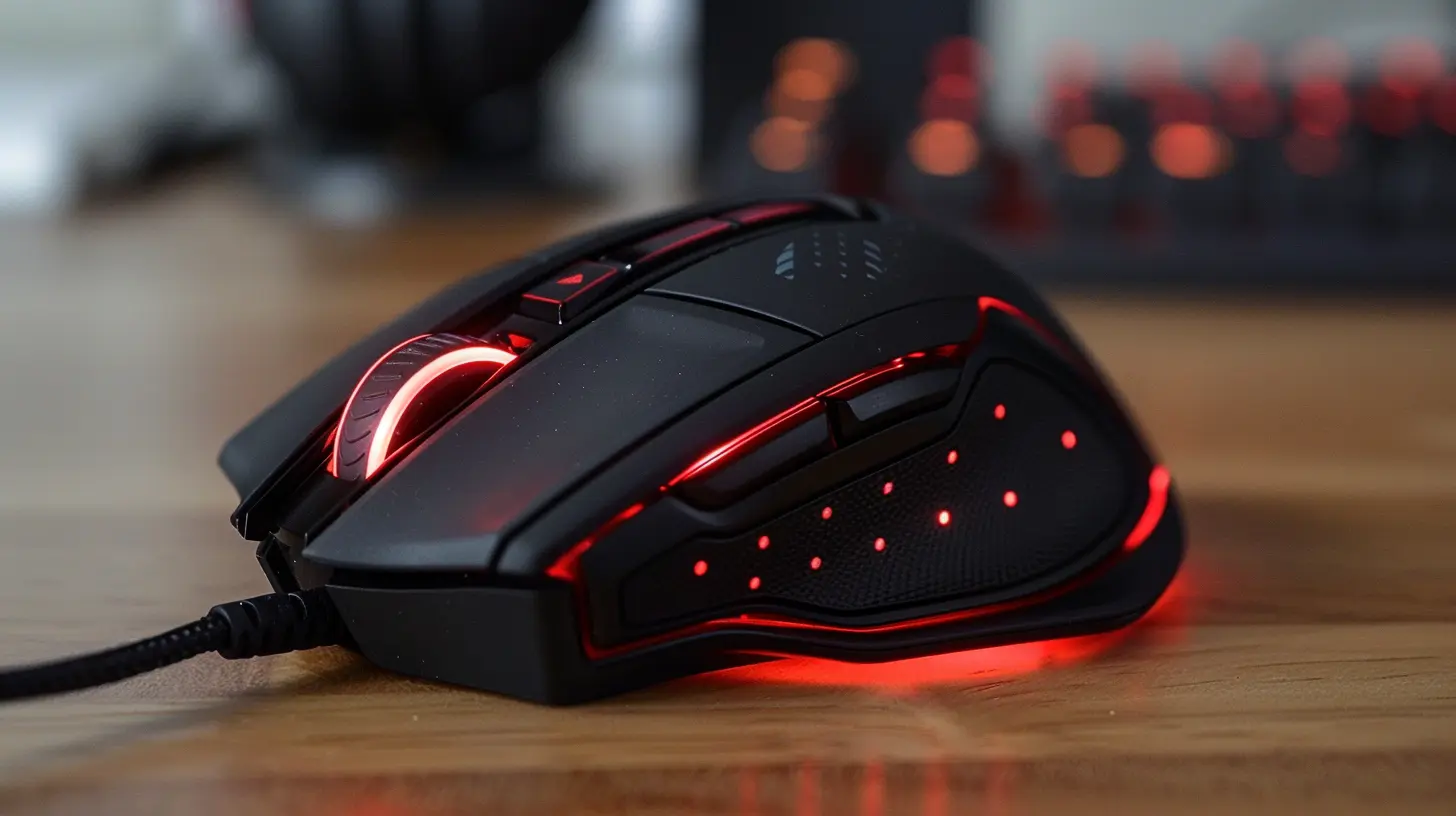
⚙️ Polling Rate Explained
We’re going full nerd for a sec. Your polling rate is how often your mouse sends data to your PC, measured in Hz.Common options:
- 125Hz
- 500Hz
- 1000Hz (most common in gaming mice)
Higher polling rates = smoother, more responsive movement. If your mouse supports 1000Hz, crank it up. It could shave off milliseconds that mean the difference between life and death in a match.
🔧 Windows Mouse Settings—They Matter Too!
Before you dive into your favorite FPS, make sure your Windows settings aren’t secretly sabotaging your aim.Enhance Pointer Precision: TURN. IT. OFF.
This setting adds mouse acceleration, meaning quick movements move your cursor faster than slow ones. Sounds cool, right? But it murders consistency.Imagine your crosshair teleporting every time you flick—it’s basically guesswork.
- Go to Control Panel ➜ Mouse ➜ Pointer Options
- Uncheck “Enhance Pointer Precision”
Pointer Speed
Keep it on the 6/11 notch—that’s the default, and it avoids artificial acceleration or deceleration.
🧠 Acceleration vs Raw Input
Let’s talk about two game settings that a ton of people overlook:Mouse Acceleration
Just like we said before, acceleration = inconsistent aim. You want muscle memory. That’s impossible if the same hand movement gives different results based on speed.Always disable mouse acceleration in your game settings.
Raw Input
This bypasses any interference from Windows and takes mouse data directly from your device. That’s a good thing.Enable Raw Input if your game supports it. Smooth, pure, uninterrupted control.
🕹️ Finding Your Perfect Sensitivity: The Arm, Wrist, and Fingers Debate
How you aim plays a role in your ideal settings. There are generally three types of aimers:1. Arm Aimer
- Uses large, sweeping movements from the shoulder.- Best with low sensitivity and big mousepads.
Great for long-range precision and tracking.
2. Wrist Aimer
- Uses quick, short wrist movements.- Works better with medium sensitivity.
Quicker flicks, but demands muscle memory to be tight.
3. Finger Aimer
- Super high sensitivity.- Relies on micro-flicks using fingers.
Very niche. Hard to master. Not recommended unless you really know your style.
Figure out your aim style and tailor your settings to complement it.
🧰 Mousepad and Surface: The Unsung Hero
You could be rocking a god-tier mouse, but if your mousepad feels like dragging across molasses or ice, your aim’s gonna be off.Cloth Pads vs Hard Pads
- Cloth pads offer more control and stable glide.- Hard pads are faster but can feel slippery.
Find one that feels right for you. Control types are best for FPS games.
Also, make sure it’s clean. Dust buildup = jittery aim. Give it a once-over with a damp cloth now and then.
👊 Grip Style Matters
Palm, claw, or fingertip grip—all change how you move your mouse.- Palm grip offers more stability and works well with slower sensitivity.
- Claw is a good hybrid—agility and control.
- Fingertip grip offers the most flexibility but takes effort to master.
Adjust your sensitivity and DPI settings based on your grip for optimal comfort and precision.
🧪 Training Drills for Aim Domination
Now that you’ve got your settings dialed in, practice makes perfect. But don’t just jump into ranked—use tools that sharpen your skill.Try These Aim Trainers:
- Kovaak’s FPS Aim Trainer- Aim Lab
- Aimtastic
- OSU! (yes, really)
Set goals, track progress, and spend 10–15 minutes daily practicing flicks, target switching, and tracking.
🔄 Keep Tuning and Testing
Don’t set and forget. Your skill improves, and your preferences may shift. Maybe you want lower sensitivity for more control or higher DPI for speedier movement.Try these checkpoints:
- Reassess settings every month or so.
- Make changes one at a time.
- Give your muscles time to adapt.
The worst thing you can do? Change everything at once—your aim will tank.
💡 Pro-Level Tips That Make a Massive Difference
Here are some gamer-approved gold nuggets to level up your aim:- Use a consistent mousepad position every session.
- Mark your mousepad spot with tape—seriously, it helps.
- Reduce background apps—CPU lag kills responsiveness.
- Stretch your wrists and hands before intense sessions.
- Keep a relaxed grip—tense hands = shaky aim.
Mind and body matter as much as settings.
🥇 Best Gaming Mice for Aim-Driven Gamers
Want to go all in? Here's a quick list of gaming mice that are killing it for aim performance:| Mouse | Sensor | Weight | DPI Range | Price Range |
|-------------------|-------------|--------|-----------|--------------|
| Logitech G Pro X Superlight | HERO 25K | 63g | 100–25600 | $$$ |
| Razer Viper V2 Pro | Focus Pro 30K | 58g | 100–30000 | $$$ |
| Glorious Model O | BAMF | 69g | 100–19000 | $$ |
| Finalmouse Ultralight 2 | PMW3360 | ~47g | 400–3200 | $$$$ |
| Zowie EC2-C | 3360 | ~70g | 400–3200 | $$$ |
Choose one that fits your hand size, grip style, and budget.
💬 Final Thoughts
Maximizing your aim with your gaming mouse settings isn’t about copying your favorite streamer—it’s about dialing things in to match YOU. The right DPI, sensitivity, mouse grip, and settings can elevate your gameplay like nothing else.Remember, your mouse is your sword. Sharpen it, master it, and wield it with confidence.
Now go out there, tweak those settings, and start clicking heads like a legend.
all images in this post were generated using AI tools
Category:
Gaming MiceAuthor:

Tayla Warner
Discussion
rate this article
2 comments
Vito Banks
Unlock the hidden potential of your gaming mouse. Adjusting settings might reveal secrets previously shrouded in pixels. Dare to experiment, and you may just discover the edge you’ve been seeking.
January 19, 2026 at 3:29 PM
Tayla Warner
Absolutely! Experimenting with your mouse settings can significantly enhance your gameplay and aim. Don't hesitate to explore different configurations for optimal performance!
Drew McGhee
Optimize DPI and sensitivity for precision.
January 19, 2026 at 4:10 AM
Tayla Warner
Absolutely! Adjusting DPI and sensitivity to your preference can greatly enhance your precision and accuracy in-game.