How to Set Up Your Gaming Mouse for Multiple Games
15 April 2026
So, you just got yourself that fancy gaming mouse with more buttons than you have fingers, customizable RGB lighting that could light up a concert, and a DPI setting that could probably launch a rocket. But now you’re staring at your screen, wondering, “Okay, now what do I do with all this power?” Don’t worry—I got you!
Let’s walk through how to set up your gaming mouse for multiple games without it feeling like you're diffusing a bomb. Whether you're into FPS titles like Call of Duty and Valorant, MOBAs like League of Legends, MMOs such as World of Warcraft, or just casual strategy games, your mouse can—and should—be optimized to match every game style.
? Why Customize Your Gaming Mouse?
Let’s start with the basics: why even bother with customization?Gaming mice aren’t just for aesthetics (though, let’s admit it—RGB lights are pretty mesmerizing). The real magic lies in efficiency and performance. Customizing your mouse allows you to:
- React faster than your enemies
- Improve comfort and reduce strain
- Eliminate unnecessary keyboard clutter
- Personalize your playstyle
Think of your mouse as an extension of your hand—if it’s not set up right, you're basically trying to fight a dragon while wearing mittens.
? Essential Tools You’ll Need
Before diving into customization, you’ll want to make sure you have the necessary setup:- ? A gaming mouse with customizable buttons (such as Logitech G502, Razer Naga, Corsair Scimitar, etc.)
- ? The corresponding software (e.g., Logitech G HUB, Razer Synapse, Corsair iCUE)
- ?️ Patience and a bit of trial and error (trust me—it pays off)
Got all that? Good. Let’s start cooking!
? Know Thy Game: Cater to Game Genres
Different games = different needs. Here’s how to break it down:? FPS (First Person Shooters)
Call of Duty, Apex Legends, Valorant—these games are all about precision and speed. For FPS games:- DPI Settings: Lower DPI (400-800) gives you more precise aiming. You don’t want your crosshair jumping across the screen when lining up a headshot.
- Polling Rate: Set it high (1000 Hz), so your inputs are registered instantly.
- Button Assignments:
- Side buttons: Melee, grenade, or push-to-talk
- Scroll wheel click: Reload or weapon swap
- DPI clutch (if available): Temporary low DPI for sniping? Yes, please.
⚔️ MMOs (Massively Multiplayer Online)
World of Warcraft, Final Fantasy XIV—these games often have skill bars longer than a CVS receipt.- DPI Settings: Medium range (1000-1600) should be comfortable.
- Macro Buttons: Assign complex combos or frequently-used spells.
- Profiles: Create specific profiles for each character class.
With a 12-button side panel, your MMO mouse becomes your best bud. No more fumbling through hotkeys.
? MOBAs (Multiplayer Online Battle Arenas)
League of Legends, DOTA 2—these require smart tactics and quick reactions.- DPI Settings: Start around 1200 DPI and adjust based on personal feel.
- Key Binds:
- Assign quick access to items or abilities
- Use macros for ping commands or wards
- Wheel Tilting (if supported): Extra utility without cramping your style
? Strategy & Simulation Games
Think Civilization, StarCraft II, The Sims. These games benefit from efficiency and comfort more than split-second reaction.- DPI Settings: Higher settings (1600-2000+) help you zoom across the map.
- Buttons: Map frequently used commands like build, pause, and select all units.
- Profiles: Set up different profiles for different game genres.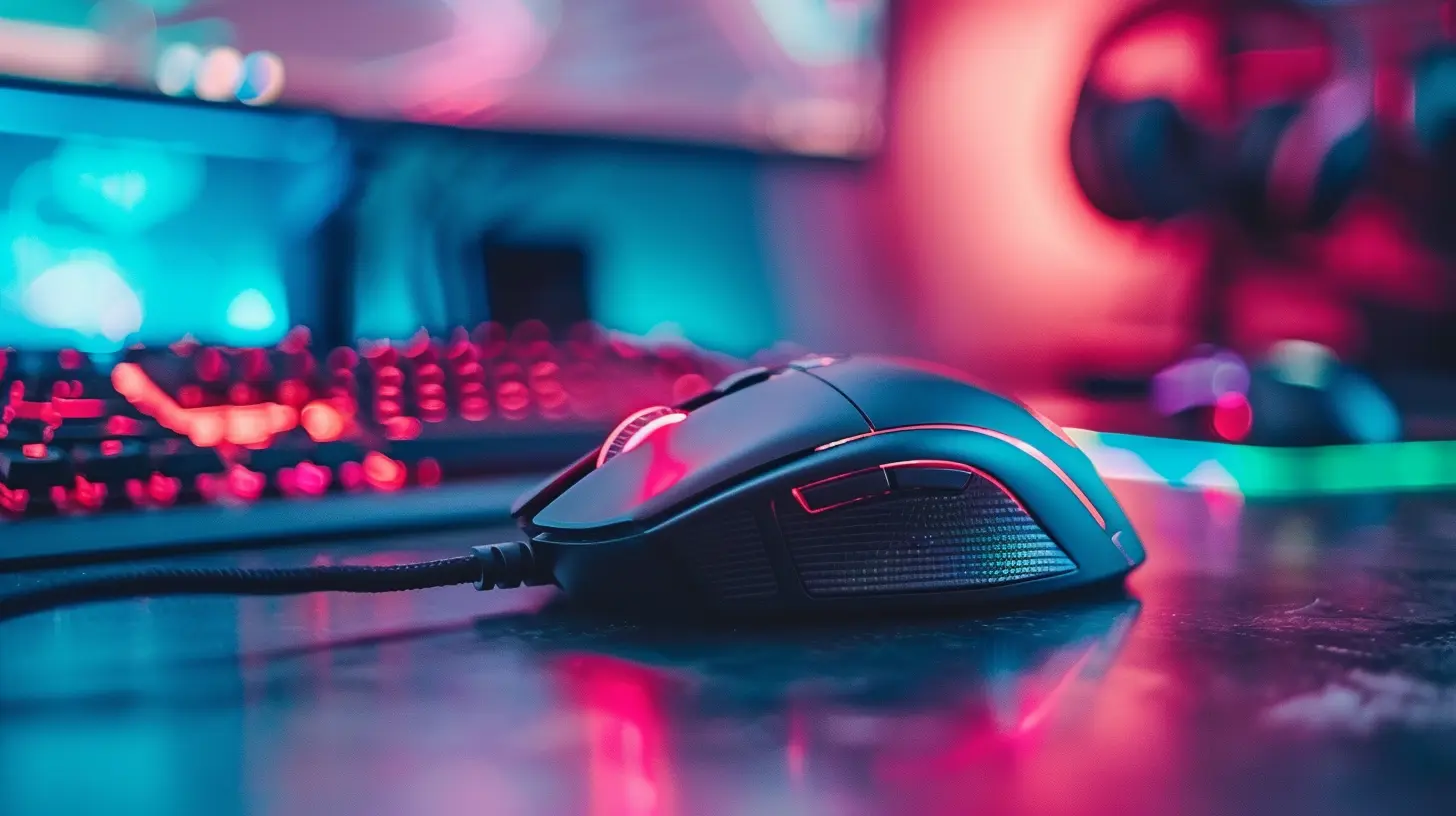
⚙️ Set Up Profiles for Each Game
Here’s where the magic happens: profiles.Most gaming mouse software lets you create custom profiles for each game. These automatically load when you open that game—super slick.
Steps usually go like this (using generic terms so this works for most brands):
1. Open your mouse’s software
2. Create a new profile and name it after your game
3. Customize DPI, button assignments, RGB settings (if you’re feeling fancy)
4. Set the software to auto-detect or associate with the game’s .exe file
5. Save your profile!
Now, when you launch League or Valorant, your mouse becomes a completely different beast, tailored just for that game.
?️ Understanding DPI vs Sensitivity
Quick sidebar—DPI (dots per inch) is often confused with in-game sensitivity. They’re related but different.- DPI is your actual mouse hardware sensitivity
- In-game sensitivity adjusts how your game responds to the DPI
A pro tip? Lower DPI + higher in-game sensitivity = choppy; higher DPI + lower in-game sensitivity = smoother and more precise.
Find your sweet spot!
? Leverage On-the-Fly DPI Switching
If your mouse has DPI buttons—use them!Many gamers set up multiple DPI levels (like 400, 800, 1600, 3200) and switch depending on their current game or even on-the-fly during intense moments (e.g., sniping vs. close combat).
Pro-tip: Assign one DPI setting to a “sniper button” for precise aiming and another for general movement. It’s like shifting gears in a car—you wouldn't drive a race track in reverse, right?
? Use Macros to Automate Tasks
Ever wish you could cast a combo or spam an item with one click? That’s the power of macros.Most mouse software allows you to record a sequence of keystrokes and assign it to a button. Perfect for:
- MMO skill rotations
- Accepting matchmaking instantly
- Quick builds in RTS or shooter construction (hello Fortnite)
Just be careful—not all games are okay with macros. Read the game’s terms of service first. We’re optimizing, not cheating.
? Keep It Organized: Label Everything
Once you start setting up multiple profiles and macros, things can get confusing fast. A little organization now can save a lot of rage later.- Give clear names to profiles: “Apex-LowDPI” or “WoW-Healer”
- Use color-coded lighting if your mouse supports it (e.g., red for FPS, blue for MMO)
- Screenshot your binds and save them somewhere as backup
Trust me, when your mouse decides to reset (because… reasons), you’ll thank your past self.
? Test and Tweak like a Scientist
Once you’ve set things up, don’t call it a day just yet.- Jump into practice mode or a casual match
- Test all your binds and macros
- Adjust sensitivity and DPI in small increments
- See if your hand feels relaxed or cramped after 30 minutes
Think of it like fine-tuning a musical instrument. It might sound decent out of the box, but with a bit of tweaking? It sings.
? Sync Your Settings Across Devices
Gaming on a laptop and desktop? Or maybe you’re moving between work and play rigs?Some gaming mouse software (like Logitech G HUB and Razer Synapse) lets you save settings to the cloud. That means your finely-tuned profiles follow you wherever you go. Handy, right?
Pro-tip: Also export local backups—just in case your internet ghosts you.
? Bonus Tips for Pro-Level Setup
- Use Mousepads Wisely: A good mousepad (especially extended ones) provides smoother gliding and better sensor tracking.- Lift-Off Distance: Some mice let you adjust how far off the surface the sensor stops tracking—important for FPS drag scopers!
- Angle Snapping: Turn it off unless you're an art bot trying to draw straight lines. You want raw input.
?️ Final Thoughts: Customize, Don’t Complicate
Setting up your gaming mouse for multiple games isn’t about over-engineering; it’s about making your game time smoother, faster, and way more fun.Once you've dialed in the perfect setup for each genre, switching between games will feel less like changing sports and more like switching weapons in your arsenal. Each game gets a unique feel—tailored just for you.
So grab your mouse, crack your knuckles, and give yourself a few solid hours to experiment. You’ll be dominating the leaderboard in no time—with style.
Game on, my friend.
all images in this post were generated using AI tools
Category:
Gaming MiceAuthor:

Tayla Warner
Discussion
rate this article
2 comments
Lulu McFee
Great insights! I appreciate the tips on customizing my gaming mouse settings. It’s amazing how small adjustments can enhance gameplay across different genres. Looking forward to trying these suggestions in my next gaming session!
April 21, 2026 at 3:39 PM
Tayla Warner
Thanks for the feedback! I'm glad you found the tips helpful. Enjoy your next gaming session!
Bradley Stevens
Essential tips for optimal gaming mouse setup.
April 20, 2026 at 2:57 PM
Tayla Warner
Thanks for the feedback! I hope the tips help you get the best performance from your gaming mouse across different games. Happy gaming!